
Blog

Recent posts
SEARCH RESULTS FOR: Smart Filtering
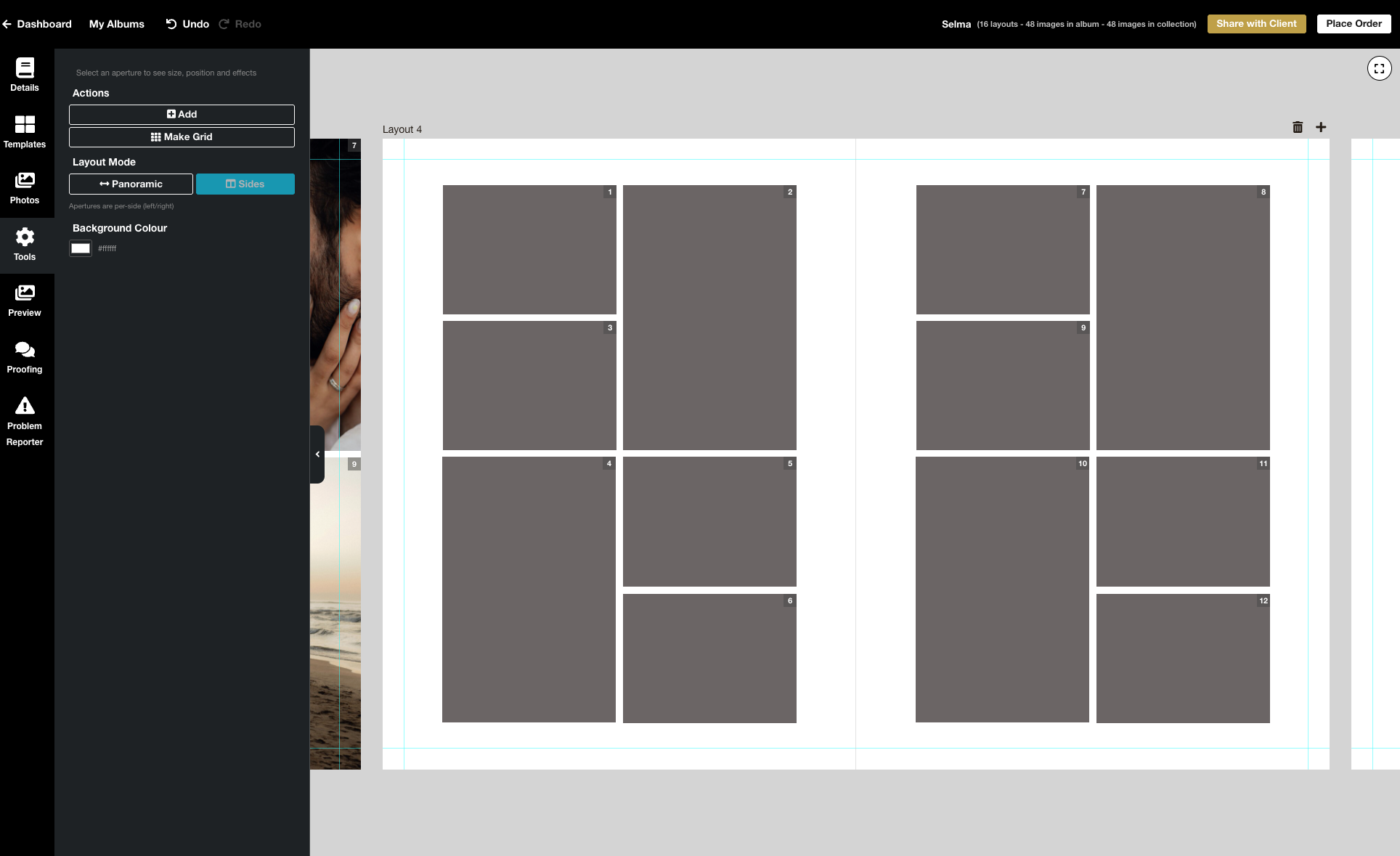
We’re excited to release the biggest update yet to our online Album Designer, focused on the things that matter most when you’re designing: control, speed, and precision. Here is a full list of what’s included in this release: Simple to use, faster and more fluid Our goal is to help you design beautiful albums easily, and you certainly can’t miss the improved performance! Even albums with many high-resolution images feel faster and more fluid: * Faster rendering * Fast movement between pages * Smoother drag-and-drop function * Reduced load times * Improved responsiveness To View More >>
This entry was posted in Product Updates by Stephen Baugh
We very rarely share the positive reviews we receive from our clients but the other day we received a pretty special one from one of our new Print Shop users, Damien Lovegrove. He's a "go for it" guy who'd launched his store within a week of deciding to use Print Shop, and within days of that made his first large format canvas sale. We're sharing his review for two reasons: It offers great advice for anyone starting out — why he chose the platform, and the challenges he faced when setting it up. If you're already using Print Shop we'd love your thoughts over on the insider about what features To View More >>
This entry was posted in Stories by Alexandria Baugh
We're working hard on systems to make designing, ordering and printing your albums easier. The latest thing we've done is commission PJ to add some features to Remix just for us. They’re in the latest final release - v1.2 - and they’re awesome: “Smart filtering” to avoid invalid selections when you order an album. A simpler version of LabFTP to use with Remix – no asking dumb questions when PJ already knows the answers. Dramatically better handling of Duo albums (here’s a movie , but really, it’s so simple you probably don’t need it). Remix now handles “cut-in” apertures! To View More >>
This entry was posted in by Admin

As I am sure you've seen, the Photojunction welcome screen got a bit of a makeover recently. I thought it might be worth a few minutes of your time to review it. The News tab has been added and if you are like many users, you might just quickly flip to the Recents tab and ignore it. But expect the content to change regularly, and take a minute every now and then to check out the links. The content will help you learn a bit about the websites and connecting with the Queensberry and Photojunction teams. Next, we have the Recent tab. Based on conversations with many Photojunction users, this is everyone's To View More >>
This entry was posted in by Admin
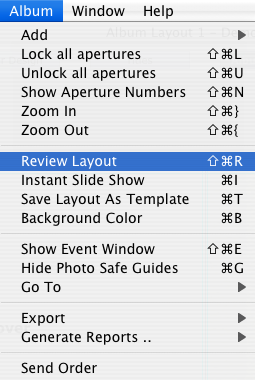
This is easier than you can imagine. If you want to design in front of a client, but hide all the tools and wizardry of Photojunction, then you can recruit the services of the Review Layout feature. Here's how: Select the 'Album Menu' and click 'Review Layout' Or for the shortcut type: On Mac: Apple + Shift + R On Windows: Ctrl + Shift + R And, yep, it uses the smart full screen feature, which means you can design on one screen while your clients follow along on another. Next in this series Cheers, Danny To View More >>
This entry was posted in by Admin

Before we get going talking about presentation, I wanted to introduce a nice common sense feature. Smart Full Screen. It's at the crux of most of the presentation features to come. Whenever you ask Photojunction to display something fullscreen, Photojunction automatically detects your second monitor (if you have one) and uses that monitor to display the full screen - by default. Primary Monitor Secondary Monitor If you don't have a second monitor, of course the features still work on your single monitor. Photojunction To View More >>
This entry was posted in by Admin

Photojunction's 'align to page centre' button has got a whole lot smarter... In the past it just placed your image in the middle of the page (whether standard or panoramic etc). Now it thinks a bit harder about what you might be trying to do. It considers whereabouts on the layout the image is when you click the button. For example if you're designing a panorama page, and your image is sitting on the right hand page, Photojunction will align the image to the centre of the right page, as in the screen shot below, just as if it was a standard layout. Previously it would have put the image in the To View More >>
This entry was posted in by Admin


